


Introduction to Generating Banners for Social Media
Creating social media banners can take a lot of time, especially when you want a consistent and eye-catching look across platforms like Facebook, Instagram, and YouTube.
Fortunately, the automatic banner maker by DynaPictures makes this process much easier and more efficient. We enable you to personalize banners in just seconds, automate design production, and ensure your content meets the specific requirements of each platform.
Social media plays a crucial role in inbound marketing. A good automatic banner maker can help you create customized banners that stand out while reducing the effort needed to make them.
What Is a Social Media Banner?
A social media banner serves as a visual representation of your brand, products, or services across different platforms. These banners can include static images, animations, or graphics and are typically showcased in areas such as Facebook covers, LinkedIn headers, or YouTube channel banners.
Whether you opt for a free banner or a custom design, the primary aim of a social media banner is to create a consistent look across all platforms. This cohesive appearance not only enhances brand recognition but also promotes engagement and increases conversions.
That’s another reason to try banner automation for social media.
Benefits of Using Social Media Banners
Investing in high-quality banners provides several advantages:
- Creating a strong first impression: A professional banner catches the eye and represents your brand effectively.
- Extending your reach and building brand awareness: Consistent and visually appealing banners make your brand more recognizable.
- Boosting sales: Banners that highlight offers or products can increase customer engagement and purchases.
- Enhancing customer satisfaction: A polished, branded look across platforms instills trust and loyalty among your audience.
With the right tools, such as a Facebook banner generator or dynamic design automation, you can create high-quality banners quickly and efficiently while maintaining a professional look.
Creating Engaging Social Media Banners Automatically
DynaPictures simplifies banner automation with tools that allow you to create social media banners in bulk.
Whether you need to create a banner for YouTube, Facebook, or another platform, the process involves just a few easy steps:
Step 1: Start with a Template
Choose a pre-made image template from the DynaPictures library. Personalize its layers dynamically by adding your brand elements, such as logos and custom text.
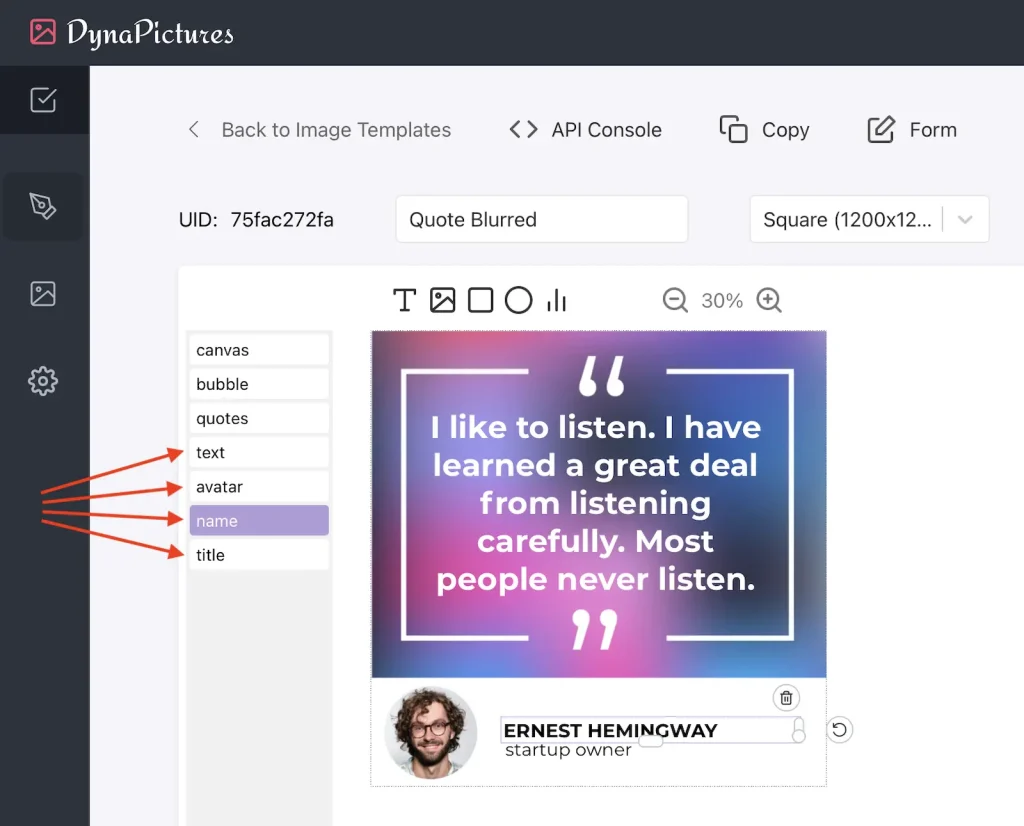
Step 2: Prepare Input Data
Use a spreadsheet to organize content for the banners. Each column corresponds to the layers you want to customize, allowing for streamlined batch processing.
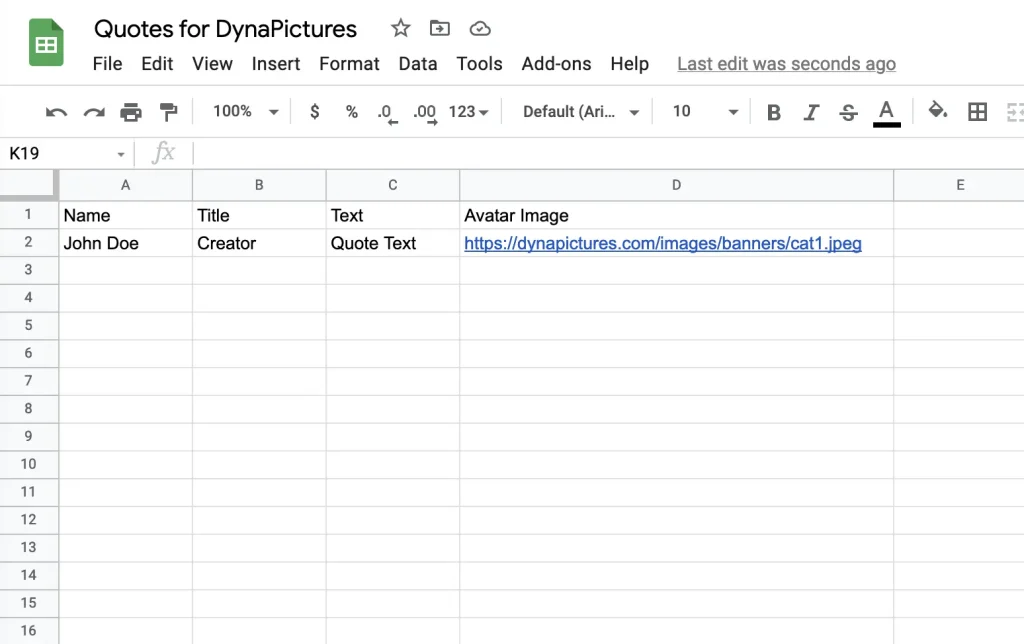
Step 3: Choose Your Automation Method
DynaPictures offers multiple ways to automate banner production:
- Website Only: Use the online editor to create variations.
- No-Code Tools: Seamlessly integrate with platforms like Zapier to automate workflows.
- API Integration: For advanced users, use the REST API to dynamically generate banners at scale.
By using these methods, you can create and customize Facebook banners, LinkedIn headers, or any other social media assets automatically and save hours of manual work.
1. Using DynaPictures Website Only
This is the simplest way to start with DynaPictures quickly. You design an image template first, and then either use forms or online spreadsheets to generate image variations.
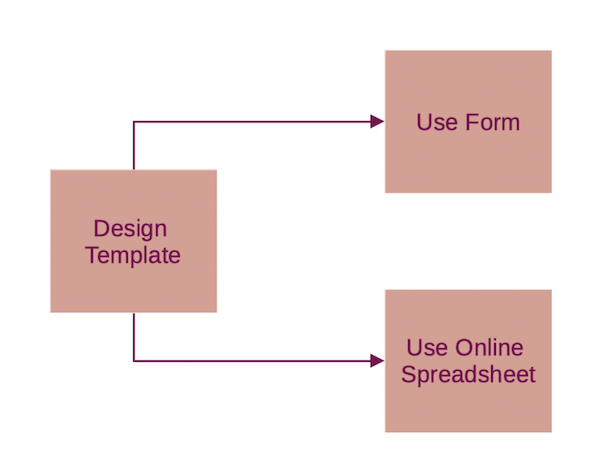
1.1 Forms
With forms, you can generate image variations sequentially one by one. The automation level is quite low in this case, as you may want to generate many images in bulk, but sometimes it’s anyway much better and faster than copy-pasting and editing text in a graphics editor directly. Another advantage of forms is that you can share the form link with others and delegate image generation. Here is a step-by-step detailed tutorial on how you can use forms to autogenerate banners for social media.
1.2 Online Spreadsheet
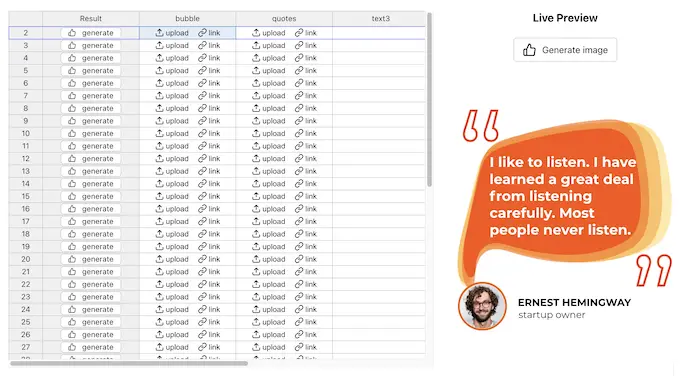
Online Spreadsheet offers a better level of automation, as you can focus on content production first – enter all texts into the columns for each individual layer, preview the results, and only then generate tens or hundreds of images at once.
Here is a detailed guide on how you can use an online spreadsheet for design automation.
2. Using No-Code Tools
No-Code tools offer a great way to connect DynaPictures with the other tools you already use and seamlessly integrate them into your daily workflows. You can also build your creative workflows and combine the tools in a way that helps you stand out from your competition.
Here is a common example of the automation workflow to generate banners for social media: when new rows with texts and images for the banners are added to the spreadsheet, take these rows and generate new banners using DynaPictures, and once new banners are generated, save them into a specific folder on Google Drive.
Here is a detailed step-by-step tutorial on how to create this workflow using Zapier.
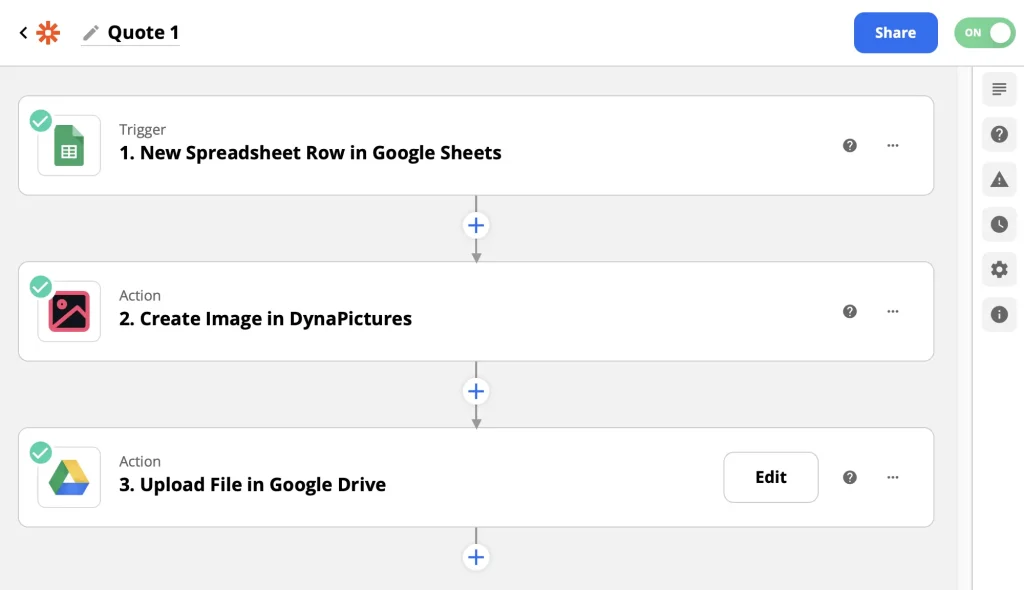
There are many other ways to seamlessly integrate DynaPictures, for more automation examples have a look at our No-Code and automation use cases.
DynaPictures is supported by all major No-Code platforms in case you already use one of them:
- DynaPictures on Zapier
- DynaPictures on Pabbly Connect
- DynaPictures on Integrately
- DynaPictures on Integromat is planned
3. Using API
DynaPictures provides the REST API for design automation tasks. You can generate an image variation, and browser templates as well as subscribe to receive a webhook notification when a new image is generated.
Have a look at this step-by-step tutorial on how to generate banners using REST API.
For more details, see REST API Reference.
Design Tips to Create Social Media Banners
Follow these tips to maximize the impact of your banners:
- Use the Correct Banner Size
Optimize banners for each platform, such as 820 x 312 px for a Facebook banner or 2560 x 1440 px for a YouTube banner. This ensures your designs look professional across devices. - Create a Strong First Impression
Use high-quality visuals and striking text to grab attention. - Incorporate Brand Colors and Elements
Consistency with your brand’s identity builds recognition and trust. - Keep Text Concise
Limit text to around 20% of the design space for readability and impact. - Add a Clear Call-to-Action (CTA)
Include CTAs like “Shop Now” or “Learn More” to drive conversions dynamically. - Select a Visually Compelling Layout
Ensure the layout complements the platform’s unique elements, such as aligning LinkedIn header designs to profile pictures. - Test Your Design
Preview banners on multiple devices to ensure they display correctly.
Summary
Social media banners serve as a visual representation of your brand, products, or services across different platforms. These banners can include static images, animations, or graphics and are typically showcased in areas such as Facebook covers, LinkedIn headers, or YouTube channel banners.
Whether you opt for a free banner or a custom design, the primary aim of a social media banner is to create a consistent look across all platforms. This cohesive appearance not only enhances brand recognition but also promotes engagement and increases conversions.
FAQ
To create a banner for social media, start by selecting a social media banner template from a platform like DynaPictures. Customize your banner using the available design elements, such as text, images, and colors, to align with your branding. You can use automatic banner creator tools to streamline the process and generate banners in seconds.
For ease of use and professional results, you can use tools like DynaPictures. It offers a vast template library, allowing you to create a custom banner by selecting a banner template tailored for various social media platforms like Instagram, Twitter, and Facebook.
DynaPictures is an excellent software option for creating banners. It provides an intuitive interface, pre-designed social media banner templates, and automation features for bulk banner production. Other popular tools include Adobe Spark, Canva, and Figma.
To create a banner, use an automatic banner maker like DynaPictures, where you can customize your banner with ease. Choose from ready-made design templates or create a unique social media banner design by personalizing text, images, and layouts. This ensures your content fits the appropriate banner sizes for different platforms like YouTube and Facebook.
Your social media banner size depends on the platform you’re designing for. For example:
Facebook Cover: 820 x 312 px (desktop) and 640 x 360 px (mobile).
LinkedIn Header: 1128 x 191 px for personal profiles, 1128 x 376 px for company pages.
Instagram Posts: Typically 1080 x 1080 px, but banners in carousel ads may vary.
YouTube Banner: 2560 x 1440 px, ensuring essential content fits within the safe zone of 1546 x 423 px for all devices.
Using the right size ensures your banners appear eye-catching and professional across all devices. Tools like DynaPictures make it easy to generate perfectly sized banners with pre-sets tailored for each platform.
To create a Facebook banner, follow these simple steps:
1. Choose the Right Size: Facebook cover banners should be 820 x 312 px for desktop and 640 x 360 px for mobile to ensure a polished look across devices.
2. Select a Template: Use a tool like DynaPictures to browse ready-made templates designed for Facebook covers.
3. Customize Your Design: Personalize the template by adding your brand colors, logo, and text to reflect your unique style. Keep the text concise and engaging.
4. Incorporate High-Quality Images: Use sharp, professional visuals that align with your message.
5. Add a Call-to-Action (CTA): Include clear CTAs like “Follow Us” or “Shop Now” to encourage user engagement.
With an automatic banner maker like DynaPictures, you can also create banners dynamically, generating bulk designs automatically to save time and effort!
