


Table of Contents
1. Overview of Automatic Image Generation with a Spreadsheet
3. Open a Spreadsheet to Generate Images
6. Download the Generated Results
7. Batch-Generate Images from an XLS or CSV file
8. Next Steps
1. Overview of Automatic Image Generation with a Spreadsheet
On this page, you will learn how to generate many images simultaneously using a spreadsheet, CSV, or Excel in the DynaPictures image generator.
Creating multiple images manually can be tedious and time-consuming. It is especially true when you need dozens or even hundreds of visuals for your marketing campaigns, personalized content, or social media posts. That’s where image automation with a CSV file or Google Sheets comes in.
You could also use No-Code tools like Zapier or Integrately, but sometimes you just want to get the job done as soon as possible and can use spreadsheets for that.
Generate images from a CSV file to produce ad banners, personalized visuals, or custom designs in bulk. This streamlines your workflows and eliminates the need for manual tasks when batch-creating images.
This guide will walk you through how to use DynaPictures’ image generator to produce many images automatically based on a single template. By the end, you’ll know how to use a spreadsheet to generate hundreds of images in minutes — quickly and efficiently.
2. Create an Image Template
We will need an image template to use as a base for personalized images. If you are not yet familiar with image templates, just go to “Image Templates” on the left and then click on any template in the library of DYnaPictures. If you want to create your own template, please read the “Prepare Image Template” section in another tutorial and then proceed to the next step here.
3. Open a Spreadsheet to Generate Images
Once you complete your image template, click the “Generate” button and choose the “Via Spreadsheet” option from the drop-down menu. Click it and a spreadsheet menu will appear.

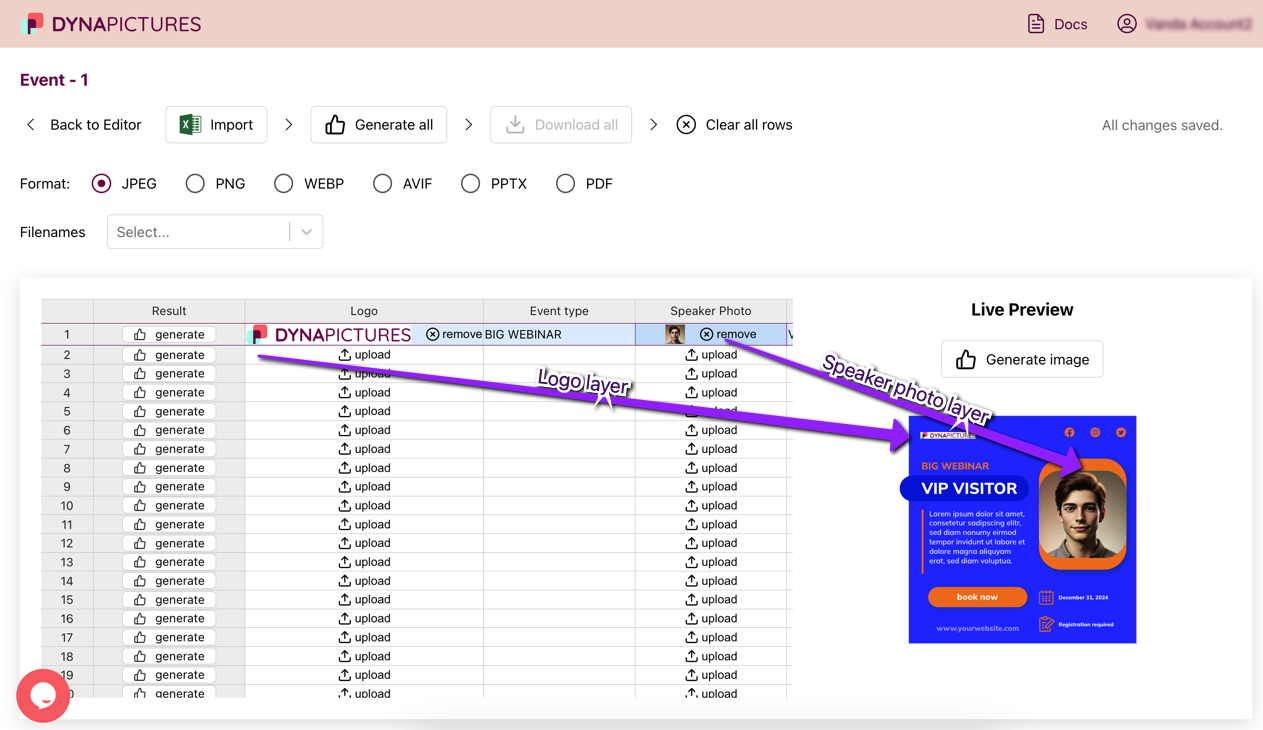
The online editor for data entry and image generation features a spreadsheet on the left and a live preview of the selected row’s image on the right.
One row has the data of a single image. You can fill in the information manually, or use the “Import” button to upload your CSV or XLS files.
You can either generate images one at a time for specific rows or process the entire spreadsheet in bulk. Choose the desired image format in the “Format” section above the spreadsheet.

4. Customize Image Layers
There is a dedicated column for each layer of the image template. You can enter type or upload an image and then immediately see what your customized image looks like.
We made this live preview for you so that your image credits don’t get consumed during testing.
5. Bulk Generation
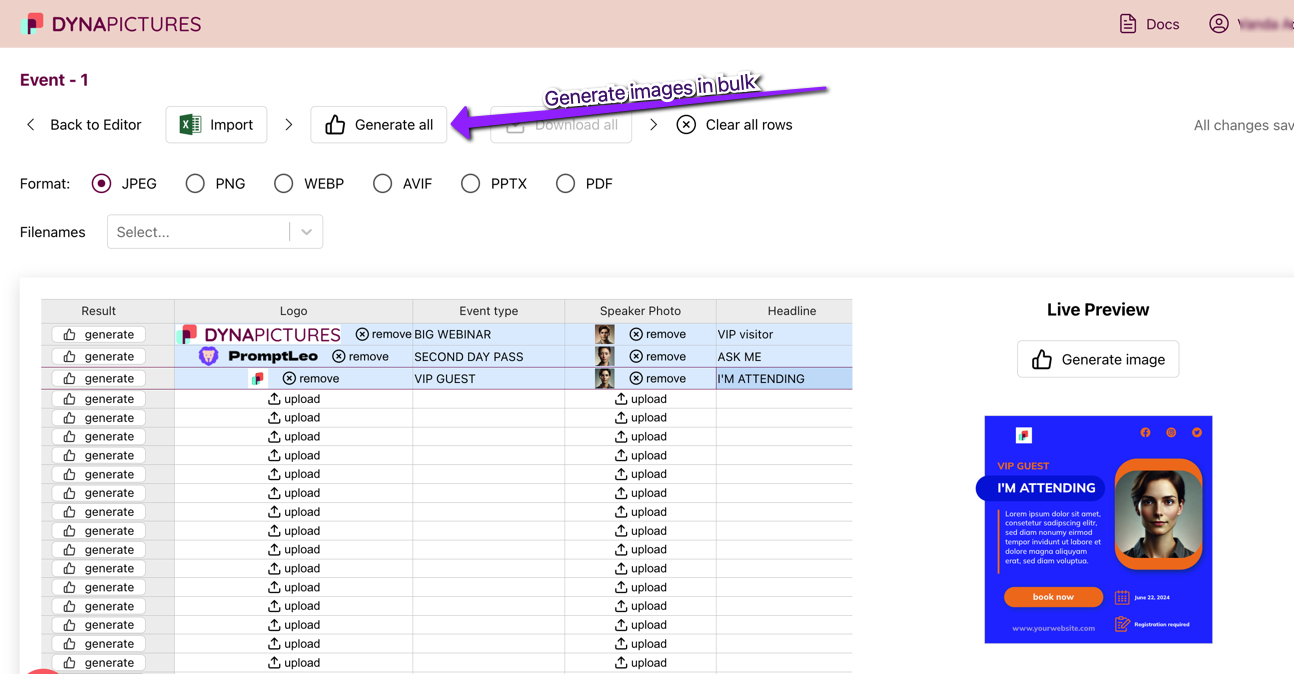
Once you are finished with the spreadsheet and entered all your data, you can start generating personalized images. Click the “Generate all” button at the top. And wait until the batch generation is completed.
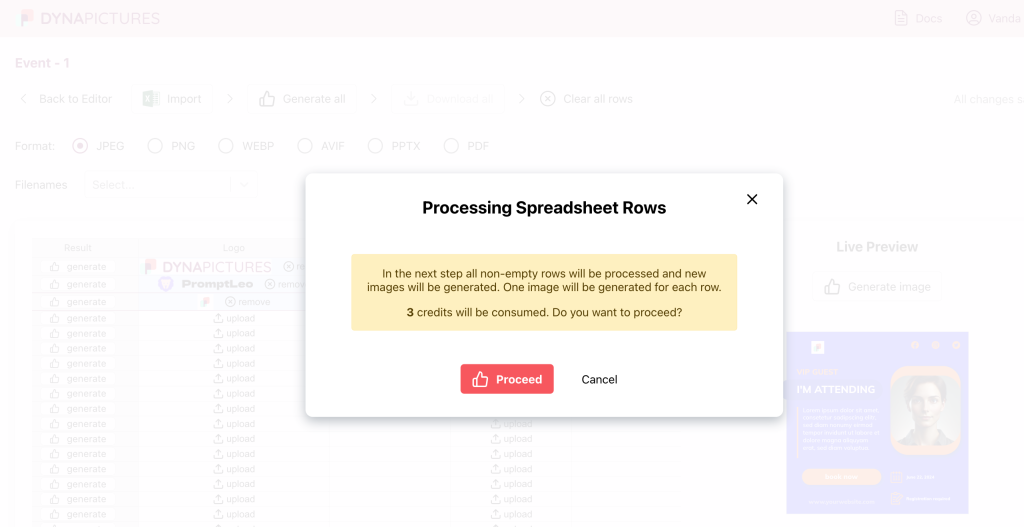
You will see a warning message containing a number of credits that will be consumed.
This number corresponds to the count of non-empty rows in the spreadsheet. Click the “Proceed” button to continue.
The generation process will start and will take some time to finish, depending on the count of rows in your spreadsheet. Don’t close the window and wait till the generation is finished.
6. Download the Generated Results
When auto-generation finishes, you will see that rows are updated in the spreadsheet. Now you can download the images one by one or all of them.
You also can add new rows, clear all rows and start the process again.

7. Batch-Generate Images from an XLS or CSV file
Here’s a quick video on how to create images from spreadsheets starting from customization to a ready batch of customized banners.
You will see how to import a CSV or XLS file with all the data for batch image generation, add multiple images to your online spreadsheet
You can use No-Code tools to save generated images to your Google Drive. Then you can download everything from Google Drive in one step.

8. Next Steps
Spreadsheets are a great way to get started quickly. Have a look at our Zapier tutorial if you want to configure No-Code automations, or at our Twitter tutorial if you want to use API and extend your product with design automation.
FAQ
Bulk image creation is the process of generating multiple images automatically using a spreadsheet or CSV file. Instead of designing each visual individually, this method uses an image template and data from a spreadsheet to create personalized images quickly and efficiently.
You can generate various types of visuals, including:
1. Banner ads
2. Social media posts
3. Personalized images (e.g., greeting cards or certificates)
4. Marketing visuals for email campaigns
5. Custom designs for e-commerce product catalogs.
Yes, you can upload your own CSV or Excel file containing the data you want to include in the images. Each column in the table corresponds to a specific layer or element in your image template, such as text, images, or colors. So you can generate images online from Excel, CSV, and XLS files.
With DynaPictures you generate images in bulk in minutes. The time required for bulk generation depends on the number of rows in your spreadsheet and the complexity of your image template. However, DynaPictures is optimized for efficiency and can generate hundreds of images in just a few minutes.
Yes, DynaPictures provides a live preview for each row in your spreadsheet. This ensures that all data is mapped correctly to the template before finalizing the generation process.
