
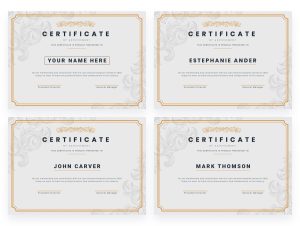

Whatever your business, personalization can be the key to engaging with your customers effectively.
Why? Personalization ensures you recognize and address unique interests or elements of your customer base. Whether it’s aspects of your products or your marketing strategy, personalization is known to increase customer engagement.
Addressing your customers this way enhances users’ experiences.
One powerful way to achieve this is through personalized PDFs. Many businesses use personalized PDFs for things like invoices, white papers, and email banners. This could be for marketing purposes, customer communication, or productivity.
In short, personalized PDFs let you deliver content that speaks to your audience. With DynaPictures, you can effortlessly generate personalized PDFs based on your clients’ data. Our platform is designed for businesses wanting to create dynamic, user-generated content.
This article will guide you on creating personalized PDFs. We also want to explore some key benefits of our unique PDF template editor.
Why Choose DynaPictures for PDF Personalization?
So, why DynaPictures?
DynaPictures stands out as a versatile custom PDF generator platform for businesses. Its features allow you to create and customize PDFs with ease. You can learn more about the top PDF generation platforms from our blog.
Our platform has a powerful PDF template editor. It makes it easy to design multi-page documents and add personalized elements. Seamless integration of user data on top of it makes DynaPictures a great choice for businesses that want to generate custom content on demand.
So, find out how to generate personalized PDF content today with DynaPictures.
Key Features of DynaPictures for PDF Personalization
- PDF Template Editor: Design and edit multi-page templates with ease. This ensures your PDFs are both functional and visually appealing.
- Dynamic Content Generation: Automatically populate PDFs with personalized data. This can be names, addresses, or other custom fields.
- Consumer-Generated Content: Allow your clients to generate their own PDFs via a form based on their specific data inputs.
- Versatile Use Cases: Create anything from customized invoices to personalized white papers and email attachments.
Benefits of Creating Personalized PDF Documents
Knowing how to generate personalized PDF content comes with multiple benefits:
- Streamline workflows generating invoices, shipping slips, labels, flyers, and other PDF documents.
- Improve customer service with a personalized experience increasing customer satisfaction.
- Appeal to your customers’ unique needs and interests.
- Effortlessly generate content for marketing and engagement purposes.
- Save time and money on USG (such as competitions, testimonials, reviews, etc).
In short, generating PDFs with a PDF Generator tool such as DynaPictures can revolutionize your team’s productivity. This is why knowing how to generate personalized PDF content effectively is crucial. Designed to save time and money, DynaPictures ensures high-quality content that you can use as you wish.
Steps to Create Customized PDF Documents
1. Choose a Multi-Page Template
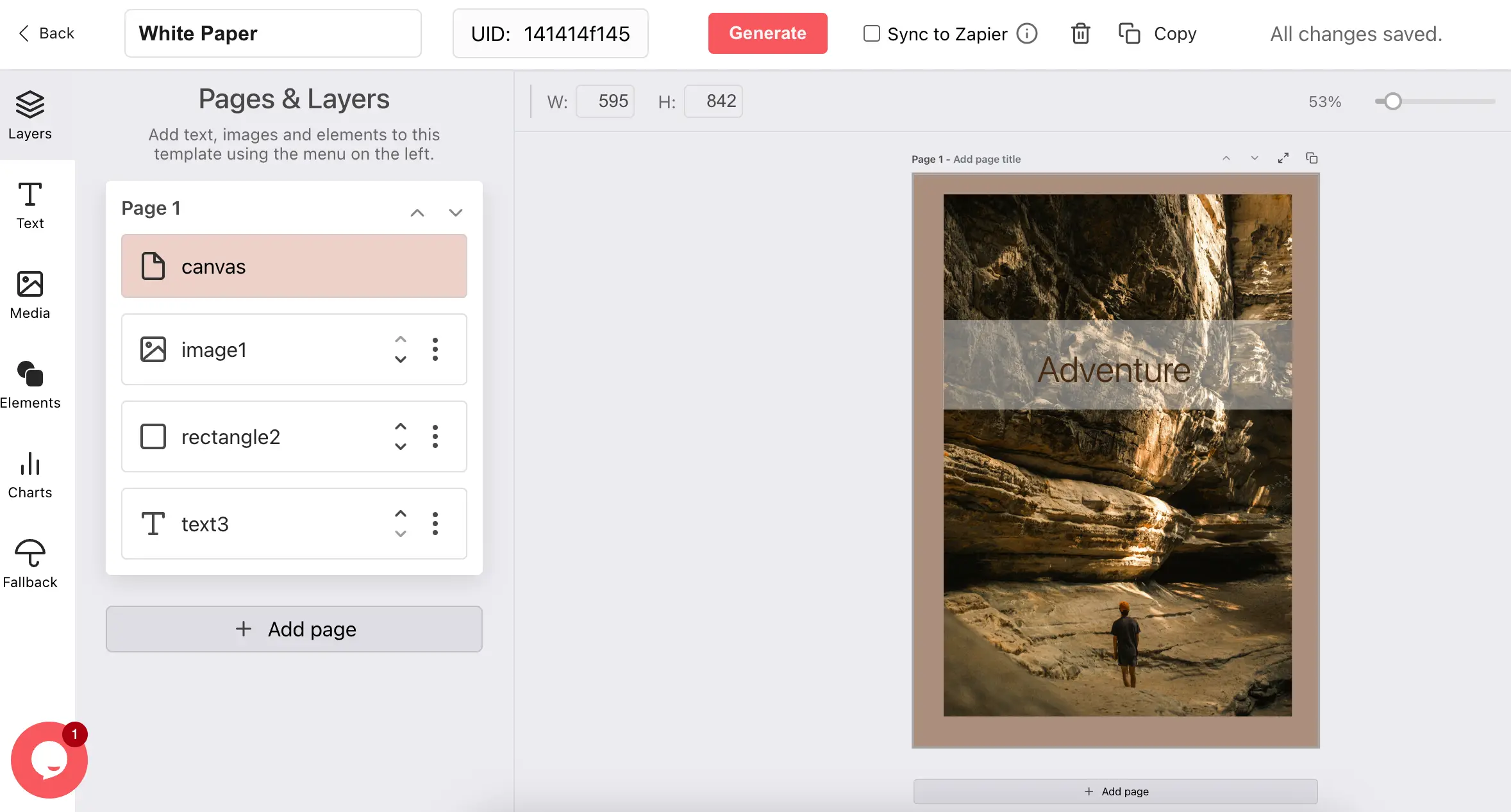
Log in to DynaPictures and navigate to the Template List Page tab. This template library contains a variety of multi-page templates in the menu. These fully customizable templates allow you to design each page to match your branding and content requirements.
Tips for Template Selection:
- Choose a template that aligns with your business needs (e.g., invoices, brochures, reports).
- Ensure the template supports multiple pages. This is so you can include all the necessary information in your PDF.
When you have selected an appropriate PDF template, you can get started.
2. Customize Your PDF Template

Once you’ve selected a template, use the PDF Template Editor to make it your own. DynaPictures offers a range of design tools that enable you to:
- Add your company logo, colors, and other branding elements.
- Insert custom fields that will be populated with personalized data. This includes data such as customer names, addresses, or specific data points.
- Design each page of your PDF with a focus on clarity, professionalism, and visual appeal.
Pro Tip: Consider the layout of your PDF carefully. Ensure that the most important information is easy to find and that your design enhances readability. Give it a clear file name so you know for future reference too.
3. Integrate Your Data Source
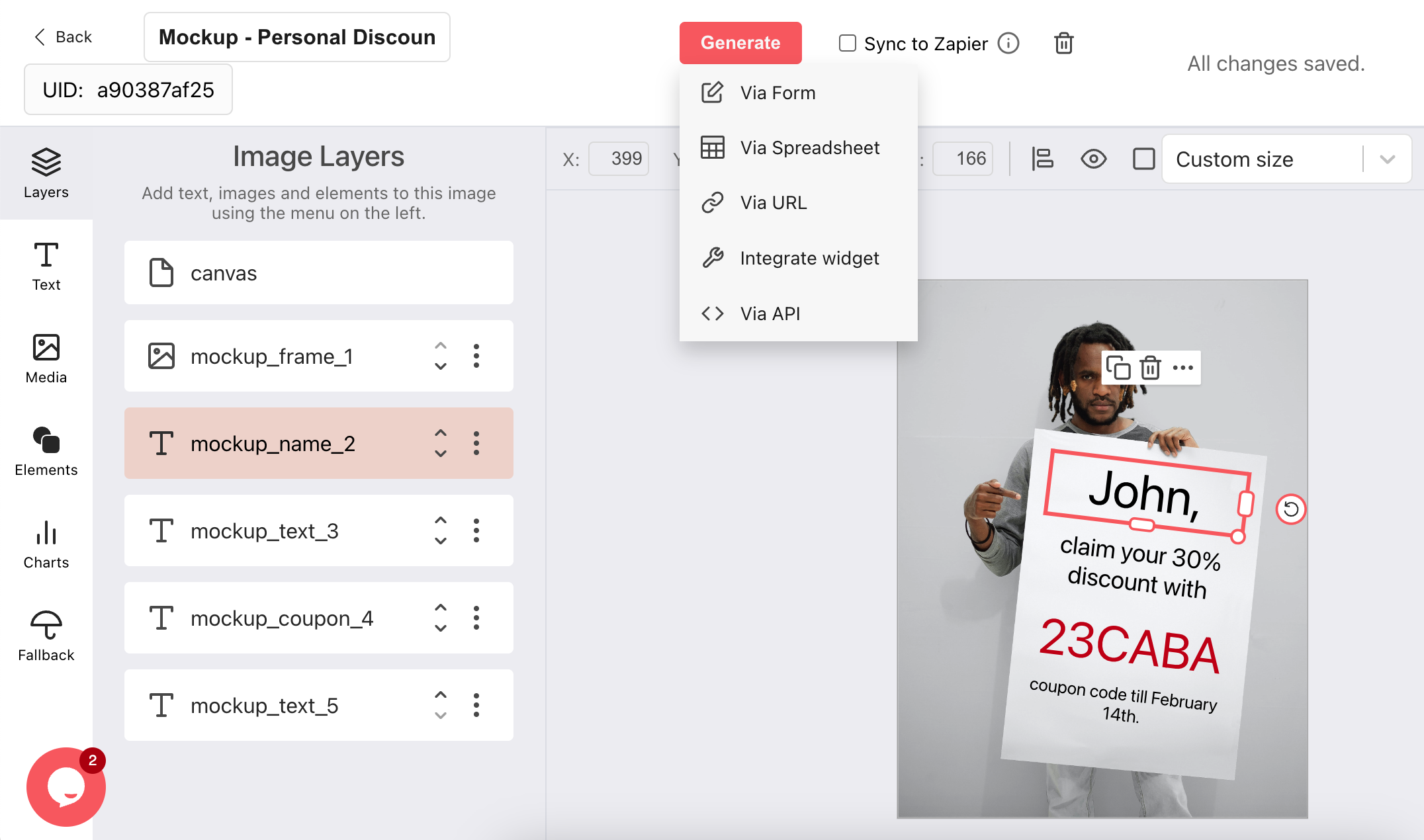
To personalize your PDFs, you’ll need to integrate a data source. DynaPictures allows you to connect with various data sources via its integration features. This includes sources such as CRM systems, spreadsheets, or form submissions.
This integration ensures that your PDFs are automatically populated with accurate and up-to-date information. Accuracy is crucial when generating personalized PDFs.
Example: Let your clients customize their invoices by allowing them to enter their data. This could be a company name, address, and other details via a form. This data is then automatically incorporated into the final PDF, providing a personalized invoice for each client.
4. Generate and Customize Your PDFs
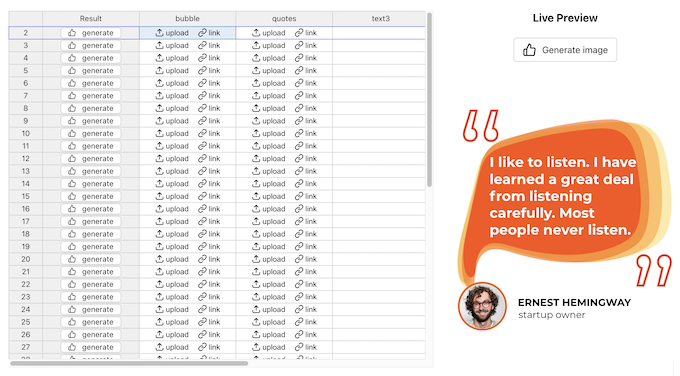
With your template designed and data source connected, it’s time to generate your PDFs. In DynaPictures, you can specify PDF as the output format during the generation process.
This ensures that all pages are compiled into a single PDF file. If not, it could format your content into a list of images.
Once formatted, and once your content is ready, start generating! DynaPictures makes it easy to generate content quickly and in bulk.
Example – Personalized White Papers
Create white papers tailored to different segments of your audience. You can do this by dynamically inserting relevant data or case studies into your PDFs with DynaPictures.
This can be a powerful tool for marketing campaigns, enabling you to deliver highly relevant content. White papers are known throughout the marketing industry to be a beneficial tool for building trust and authority.
By generating them easily and quickly with DynaPictures, you can get ahead of your competitors.
5. Share Your PDFs
Once your personalized PDFs are generated, they can be distributed in various ways. Attach them to email campaigns, download them for print, or allow clients to access them directly via a link.
Whatever you use your PDFs for, it’s always good to check they display correctly before you send them out. Whilst DynaPictures ensures your PDFs generate correctly, the viewing format can change.
This can be associated with browser type, computer type, and more. If you are having this issue, check out this Adobe help forum discussing the issue.
Don’t forget to save your editable PDF file for reuse later.
Example – PDF Attachments for Email Campaigns
Send personalized PDFs such as customized offers or reports as attachments to your email campaigns. This enhances the impact of your emails by providing recipients with content that is tailored specifically to them. If you are looking for more tips on how to utilize the PDFs you generate, check out this article on how to generate leads with PDFs.
Consumer-Generated Content: Empowering Your Clients
One of the standout features of DynaPictures is the ability to enable consumer-generated content. By integrating forms, you can allow your clients to create their own personalized PDFs. These PDFs can be based on the data they provide. This is ideal for scenarios such as:
- Customized Invoices: Clients enter their details and receive a professional invoice.
- Tailored Reports: Allow customers to generate reports that include data specific to their account or usage.
- Personalized Brochures: Customers can enter details necessary for promoting a product or service. With these details, DynaPictures generates a high-quality brochure.
- Competitions: Competitions utilizing USG have become popular in recent years. Users can input their details that are relevant to a competition and generate a PDF. They can then submit their work as a contender to be in for a chance of winning.
This feature not only saves time but also enhances the customer experience. Customers are provided with content that meets their exact needs. With our tips on how to create personalized PDF content with ease, get started today with DynaPictures!
Best Practices for PDF Personalization
When knowing how to create personalized PDF content, there are some best practices to follow. This includes:
- Consistency: Ensure your branding is consistent across all PDFs. Maintain a professional and cohesive look to ensure high-quality PDFs every time.
- Readability: Keep your design clean and easy to navigate. Ensure there is a clear hierarchy of information. Users should be able to easily understand your PDFs.
- Data Security: Ensure that all personalized data is handled securely. Comply with data protection regulations to ensure user data protection.
If you stick to these tips, you can ensure you generate high-quality PDFs every time. PDF generation with DynaPictures has never been easier.
Conclusion
Knowing how to create personalized PDF content with DynaPictures is a powerful way to enhance your business’s productivity. This could be through improved communication, customer engagement, and delivery of dynamic content on demand.
Whether you’re generating invoices, white papers, or email attachments, DynaPictures can help. Our custom PDF generator platform makes it easy to design and distribute professional, personalized PDFs that resonate with your audience.Ready to get started? Explore DynaPictures’ PDF personalization platform today and take your content creation to the next level!
FAQ
Knowing how to generate personalized PDF content has never been easier with DynaPictures. Firstly, select an appropriate template. Then, customize your PDF accordingly to suit your needs. Once customized, Integrate the data from an appropriate source to ensure your users’ data is incorporated. Once done, generate and share your PDFs accordingly.
With our guide, we aim to make sure you know how to generate personalized PDF content easily. However, the full suite of DynaPictures PDF generation features can go a long way for your business. Check it out today!
Create a custom PDF form with DynaPictures’ custom PDF generator platform. Using a PDF generator tool like DynaPictures lets you generate PDF forms in bulk, quickly and effectively. Just integrate your data source (including user data) and customize your PDFs. Once done, generate the number you want, and share it with your users.
DynaPictures creates PDF files quickly and with ease. Personalize your files and documents, produce PDFs in bulk, and engage your customers effectively. Typically, Adobe is one of the most popular PDF creation programs.
However, there are multiple PDF generator tools and PDF automation software out there too. PDF document automation is widely recognized, and so the PDF automation software market is growing.
DynaPictures is amongst the more advanced PDF generation tools on the market. Users can convert their content into high-quality PDFs with the DynaPictures PDF editor instantly. PDF document automation has never been easier with DynaPicutrs. Just upload your data and content and get started!
Customize a PDF file with a tool like DynaPictures. Incorporate your brand logo, color schemes, fonts, and attributes. Insert images or other attributes to ensure the PDF is specific to its purpose. DynaPictures includes special features for customization features including resizing tools, importing options, and a template editor suite to get started.
You can modify a PDF file with DynaPictures using editor or No-Code tools. The DynaPictures API and flexible PDF generator platform allow users to modify text and link elements. Alongside this, a template editor allows full customization flexibility for PDF generation.
