
Why Add a Countdown to a Coming Soon Email
Curiosity Without the Full Reveal
A countdown to a reveal date builds interest while the details stay under wraps.
Curiosity Turned Into Signups
Pair the countdown with a notify-me form to grow the launch list.
The Date Set Later
Publish with a placeholder date and update the target when the launch is locked in; the URL stays the same.
The List Warmed Before Launch
Subscribers who watched the countdown open the launch email.
What a DynaPictures Timer Adds to a Coming Soon Campaign
A Countdown That Grows Up With the Announcement
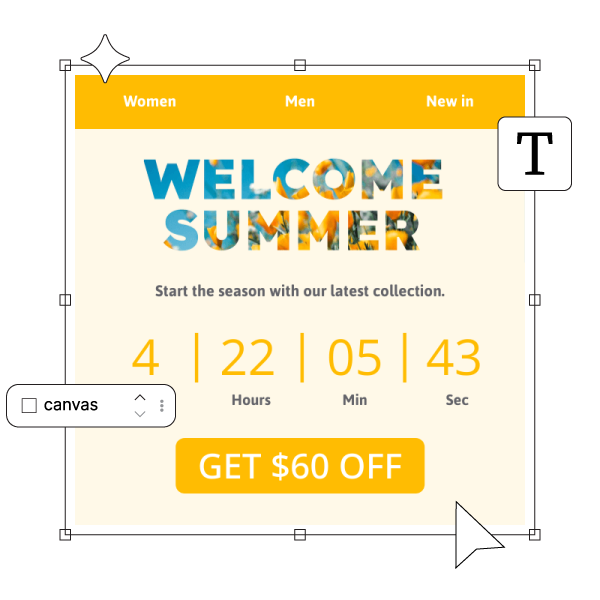
Design a vague teaser stage, a dated final-countdown stage, and a revealed stage in the countdown timer generator. As the reveal nears, DynaPictures switches from teaser to countdown to reveal from one URL.
Curiosity, Accurately
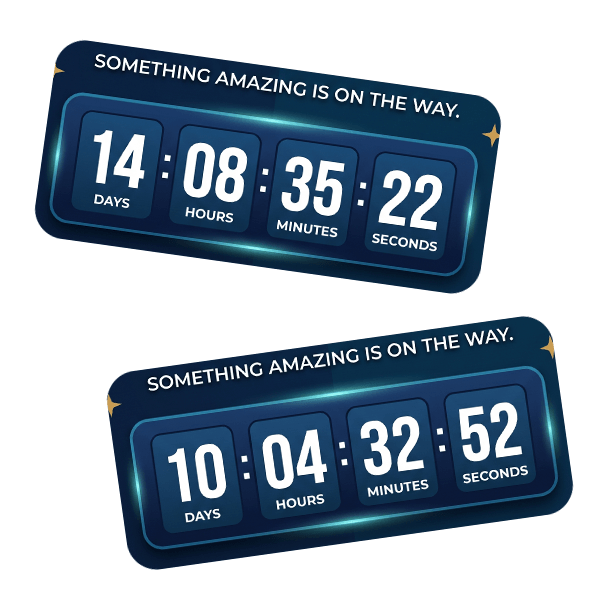
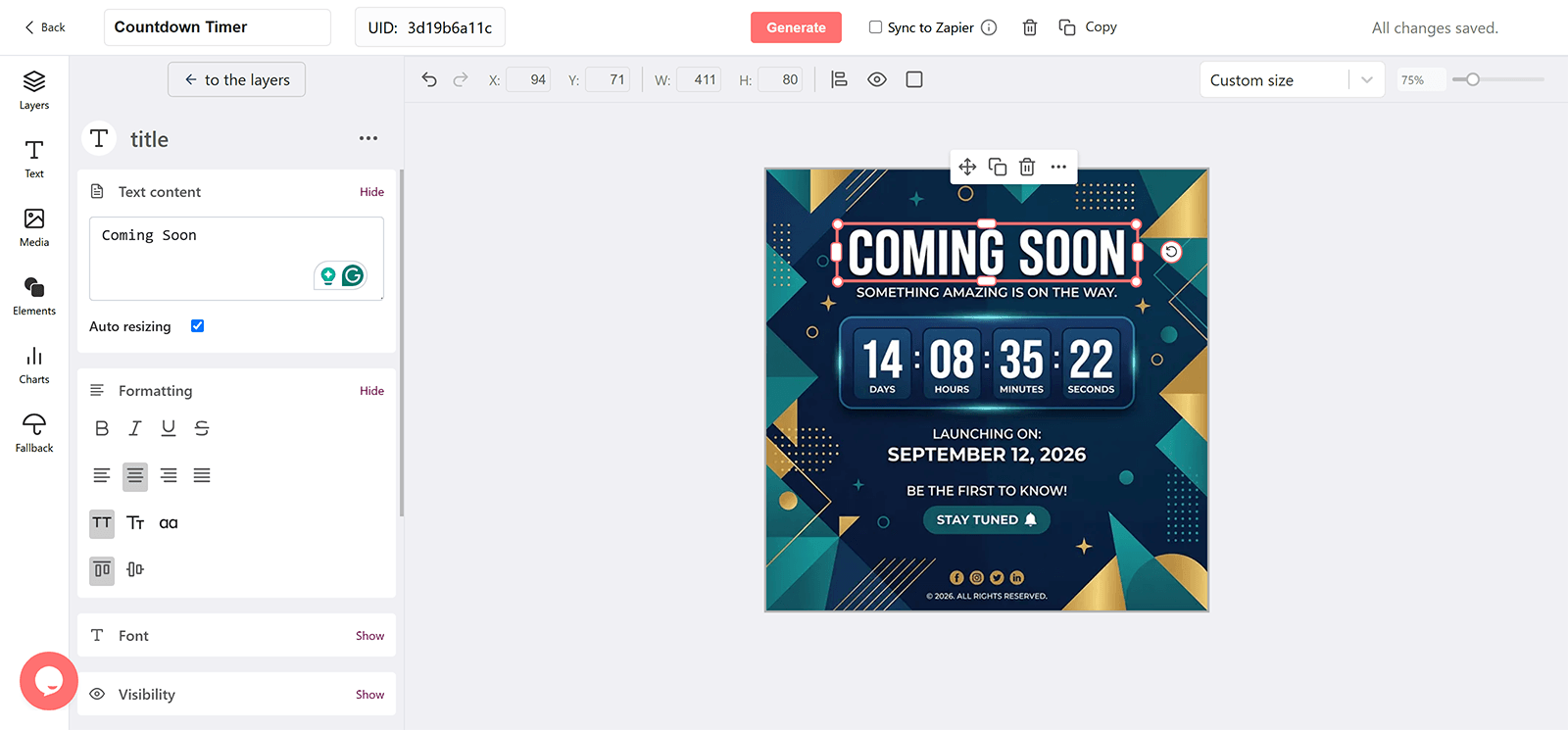
The timer renders when the email is opened and animates for 60 seconds, so the days to the reveal are right whenever the teaser is read.
Start Vague, Get Specific Later
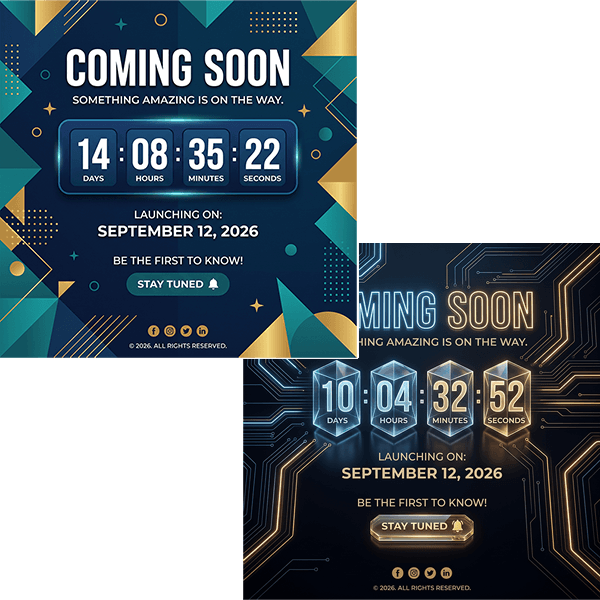
Change the target date in DynaPictures when the launch is confirmed. Emails already sent pick up the new date on their next open because the image renders live.
Everything Included in a Launch Timer
Renders Wherever Images Do
A GIF served through a standard img tag shows in Gmail, Apple Mail, Outlook, and mobile clients. Outlook for Windows renders the first frame only, as a still.
Fresh on Every Open
Each open fetches a new image with the time until your Coming Soon at that moment, then ticks for 60 seconds. Late openers see the real countdown.
Before, At, and After the Moment
A teaser design, a launch-day design, and a design for after the doors open or the event ends, switched automatically by the offset to your target time.
Different Times for Different Audiences
Pass an earlier or later date through a merge tag from your email service provider (ESP) for presale groups or regional sessions, from one published timer.
Opens by Announcement
Tag each email's URL and see opens by send, email client, and country in the analytics dashboard.
Gauges and Progress Bars
Show the run-up as a filling gauge or a shrinking bar as well as digits.
Runtime up to 30 Days
Every plan runs a timer up to 30 days ahead of the Coming Soon, which covers the usual announcement window. Pro removes the cap for longer run-ups.
No Throttling on Paid Plans
Free plans include 100 opens altogether. Paid plans scale the monthly view allowance to your list and never throttle or watermark.
How to Build a Coming Soon Countdown Email
Create the Coming Soon Timer in the Generator
Open the DynaPictures countdown timer generator, set the Coming Soon date and timezone, design the teaser, launch-day, and after-launch stages, and publish to get the image URL.
Add It to the Announcement and Reminders
Paste the URL into an image block in your email service provider (ESP) for each email in the sequence. Append ?expire= with a merge tag if audiences have different times.
Tag Each Send
Add a campaign parameter per email and compare opens by announcement in the DynaPictures analytics dashboard.
Who Uses Coming Soon Countdown Emails
Marketing leads at any company
Teasing a launch before details are public.
Startup founders
Building a waitlist ahead of a reveal.
Brands and agencies
Running reveal campaigns for collections and collaborations.
See a Launch Countdown Flip to Live
Book a short walkthrough: build a Coming Soon timer with an after-launch stage and watch it switch when the clock runs out.
How DynaPictures Compares for Launch and Event Emails
A Design for After the Launch
When the countdown ends, DynaPictures shows the after-target stage you designed, such as a now-available banner. Many tools leave a clock at zero.
Rendered at Open
Many tools pre-render a GIF at send time. DynaPictures renders on each open and caches the image for a minute.
One Timer, Several Audiences
Presale and general-sale groups can each get their own date through merge tags. Many tools need one timer per date.
Full Editor and Fonts
Google Fonts, uploaded brand fonts, key art, and an AI background generator in one editor. Many tools offer a fixed layout with a color picker.
Gauges and Progress Bars
Show the run-up to the Coming Soon as a bar or gauge alongside digits. Many tools draw digits and nothing more.
Analytics per Announcement
Opens by campaign parameter, client, and country. Many tools give you one number and nothing more.
Related Email Countdown Timers
Frequently Asked Questions
In the countdown timer generator, design and publish the timer, then put its image URL in an image block in your email service provider (ESP).