
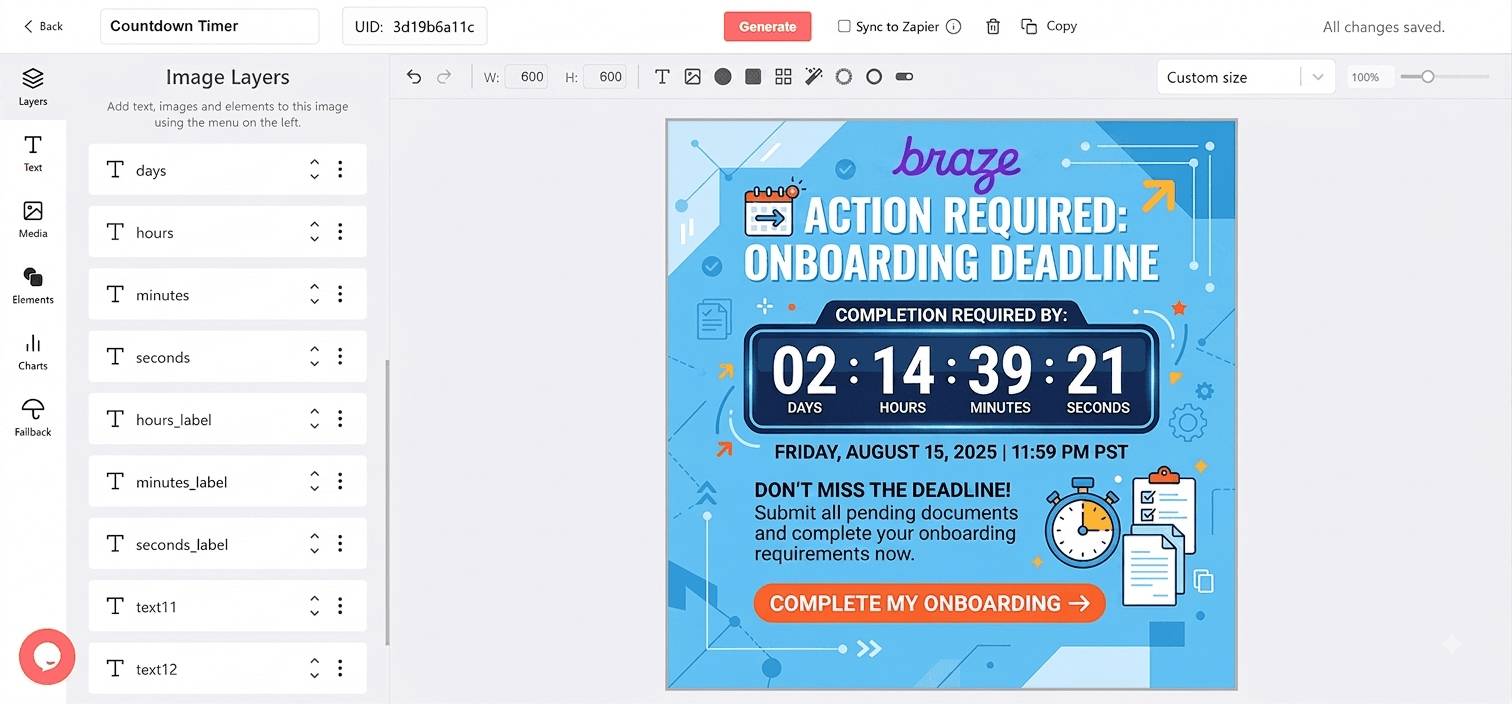
Why Add a Countdown to Your Braze Messages
Deadlines Are Already Attributes
Trial ends, offer expiries, and event timestamps sit on the user profile or in event properties. Liquid puts any of them into the timer URL.
Canvas Steps Send per User
Each user moves through a Canvas at their own pace. A timer rendered at open stays correct for every step.
Your Design, Every Stage
Build the banner with your brand fonts and artwork, and design the last-hours and after-deadline stages separately.
Opens by Campaign and Client
Add the campaign name to the timer URL and see opens by campaign, email client, and country.
What a DynaPictures Timer Adds to Braze
One URL Across a Canvas
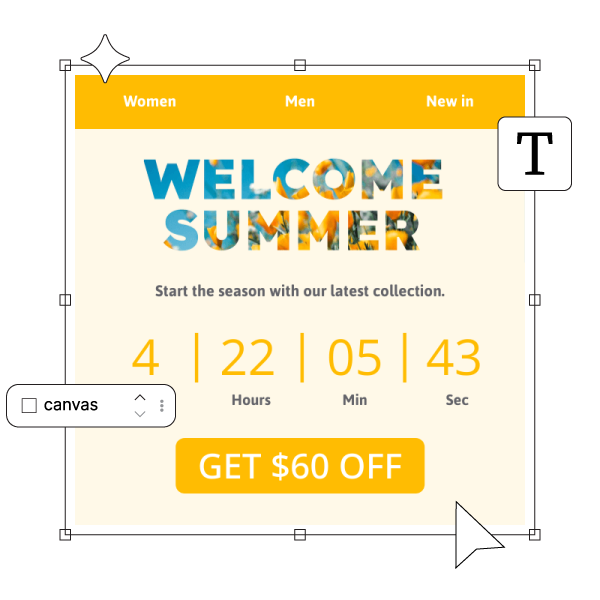
Design the first touch, the urgent reminder, and the after-deadline message as stages of a single timer. DynaPictures serves the stage that matches the offset to the deadline, so the image URL in each email step shows the right creative as the user's window closes.
Rendered When the Message Is Opened
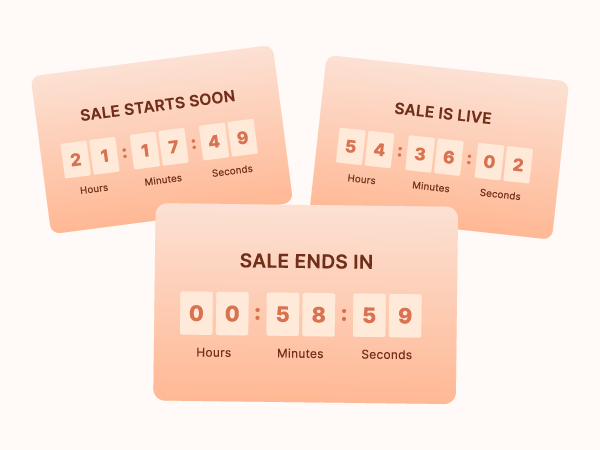
Each open fetches a fresh image with the current time left, cached for a minute and animated for 60 seconds. Users who open a later step a day late still see the real countdown.
Liquid Sets the Deadline
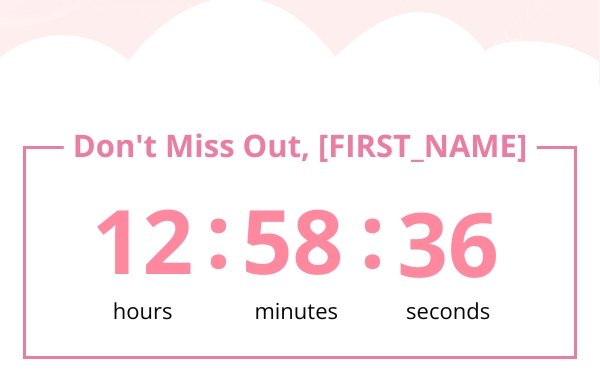
Append a Liquid expression to the timer URL as the expire parameter, for example ?expire={{custom_attribute.${offer_ends} | date: '%d-%m-%Y--%H-%M'}}, or pass an ISO 8601 value. Event properties work the same way in action-based campaigns. Push and in-app messages do not load the image, so keep the countdown in email steps.
Everything in Every DynaPictures Timer
A Plain img Tag, Any Email Client
The timer is a GIF loaded through a standard img tag, so it shows wherever images do: Gmail, Apple Mail, Outlook, and Braze's own preview. Outlook for Windows displays the first frame as a still image.
Rendered When the Email Is Opened
Each open fetches a fresh image with the time left at that moment, then animates for 60 seconds. A subscriber who opens on day three sees day three, not the countdown from send time.
One Timer, a Deadline per Subscriber
Append a Braze date merge tag to the expire parameter and every recipient counts down to their own date. Format it as DD-MM-YYYY--HH-MM in the timer's timezone, or as an ISO 8601 timestamp with an offset.
Stages That Switch on Their Own
Design separate banners for the teaser, the final hours, and the time after the deadline. DynaPictures picks the right one from the offset to your target date, so the same URL keeps working across the whole campaign.
Opens by Campaign, Client, and Country
Every open is logged with the email client, country, and any custom query parameter you add. A Braze campaign name in the URL shows up as its own row in the analytics dashboard.
Gauges and Progress Bars
The remaining time can drive a radial gauge, a simple gauge, or a line progress bar in the same design. Digits are the default, not the only option.
Runtime up to 30 Days, Custom on Pro
Every plan runs a timer up to 30 days ahead of its deadline, which covers most promotions. The Pro plan lifts that limit for long-running campaigns.
No Hard View Caps on Paid Plans
The free plan serves 100 opens in total, enough to test a real send. Paid plans include a monthly view allowance sized to your list and are never throttled or watermarked.
How to Add a Countdown Timer to Braze
Design the Timer in the Generator
Open the DynaPictures countdown timer generator, set the target date and timezone, design the stages you need, and publish. You get a stable image URL ending in .gif.
Paste the URL Into a Braze Image Block
Add an image to your Braze email and use the timer URL as its source. To personalize, append ?expire= followed by a Braze date merge tag formatted as DD-MM-YYYY--HH-MM.
Tag the Send and Watch the Opens
Add a query parameter such as campaign= with your Braze campaign name. Opens then appear per campaign in the DynaPictures analytics dashboard.
Who Uses Braze Countdown Timers
Consumer apps running lifecycle Canvases
Counting down to each user's trial end or offer expiry from a custom attribute.
Growth engineers wiring event-triggered campaigns
Passing an event property plus a hold window into the deadline.
Retention teams sending win-back offers
Giving a reactivation offer a real deadline per user and measuring opens per campaign.
See a Timer Go From Editor to Inbox
Book a short walkthrough: build a timer in the generator, paste it into Braze, and watch it update on open.
Where DynaPictures Differs From Other Email Timer Tools
Live on Every Open
Many timer services pre-render one GIF at send time, so late openers see stale numbers. DynaPictures regenerates the image on each open and caches it for one minute.
Personalized Deadlines Through Braze Merge Tags
One published timer serves a different deadline per recipient through the expire parameter. Many tools support a single fixed date per timer.
Multi-Stage Designs
Separate designs for early, urgent, and after-deadline stages, switched automatically by offset. Many tools offer one design and a blank or zeroed timer after the deadline.
Gauges and Progress Bars Driven by the Countdown
Show the time left as a filling gauge or a shrinking bar as well as digits. Many email timer tools render digits only.
A Full Design Editor, Fonts Included
Any Google Font or an uploaded brand font, free layout, images, and an AI background generator in the same editor. Many timer tools offer a fixed layout with a color picker.
Analytics You Can Segment
Opens broken out by campaign parameter, email client, country, and time of day. Many tools report a single view count or nothing at all.
Related Email Countdown Timers
Frequently Asked Questions
Publish the timer in DynaPictures and copy its image URL. In the Braze editor add an image block with that URL, or an img tag in an HTML template, and append the expire parameter with a Liquid expression to personalize.