
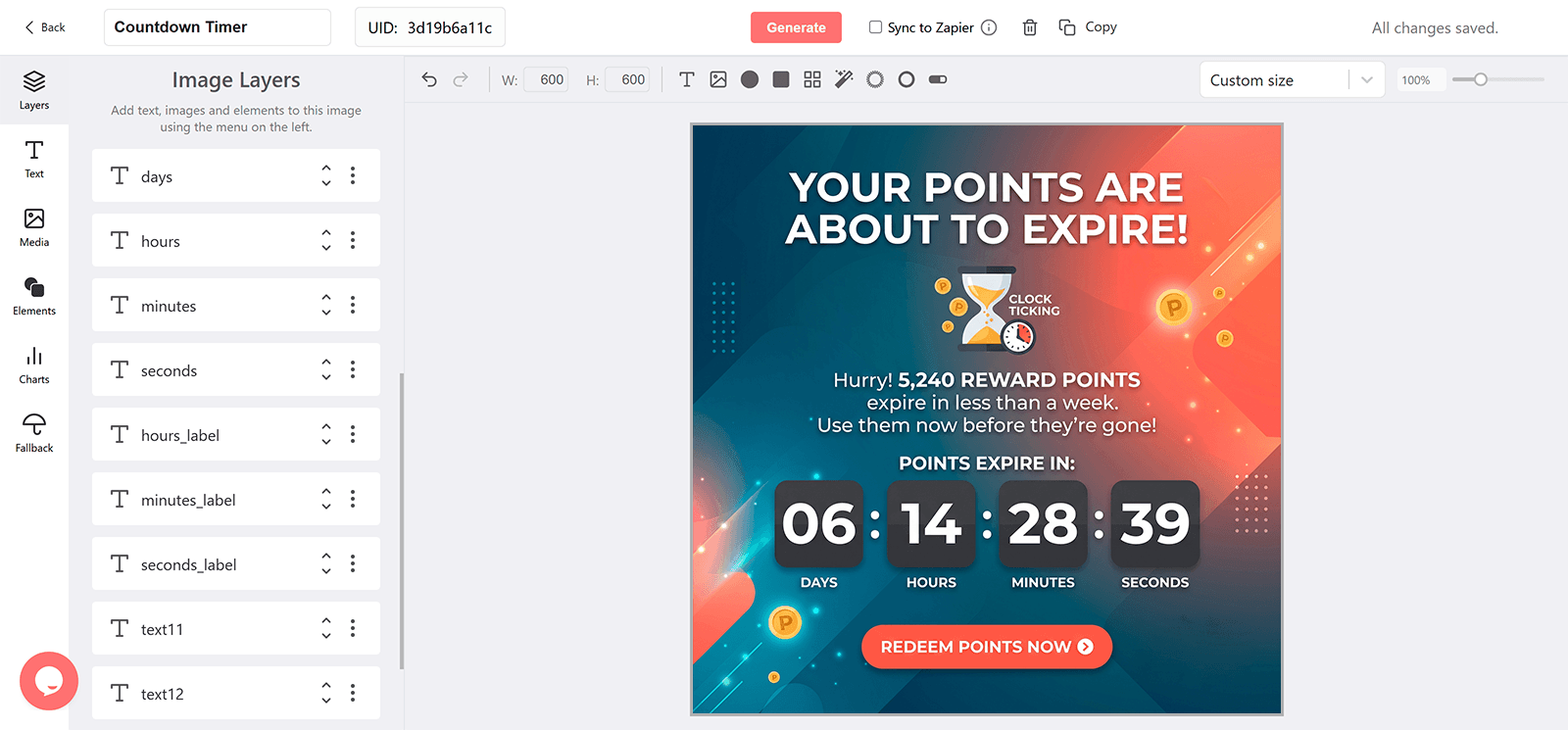
Why Add a Countdown to a Points Expiry Email
Protect the Value Members Earned
Points that lapse silently damage the program. A visible countdown gets them redeemed.
Redemption-Triggered Purchases
A deadline on points brings a visit and an order that would not otherwise happen.
Personal by Member
Each member's expiry date drives their own countdown through a merge tag.
Transparent Policy
Showing the exact expiry reads as fair, which keeps members engaged.
What a DynaPictures Timer Adds to Points Reminders
Every Stage of the Reminder
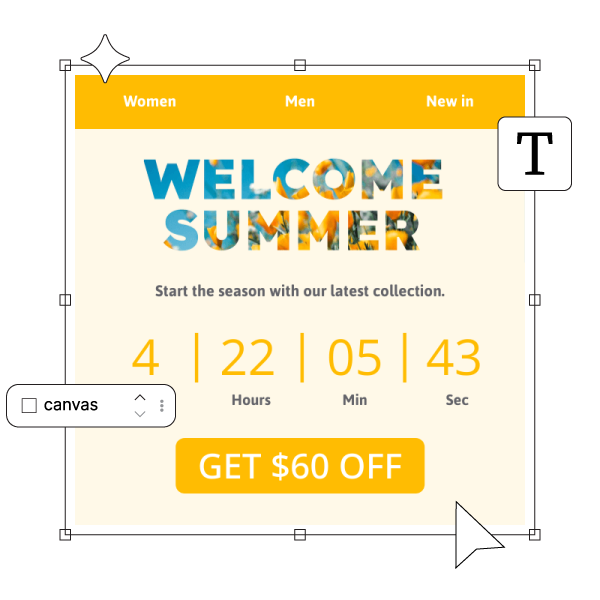
Design a first notice, a last-week banner, and an expired stage in the countdown timer generator. DynaPictures switches them by the offset to each member's expiry date.
Each Member's Own Balance Deadline
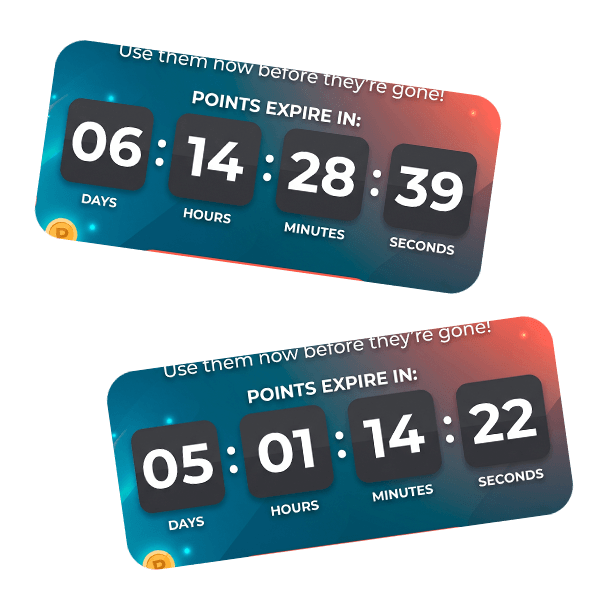
Pass the expiry from your loyalty platform through your email service provider (ESP) merge tag as the expire parameter. Show the points balance itself as text in the email next to the timer.
Accurate Whenever the Member Opens
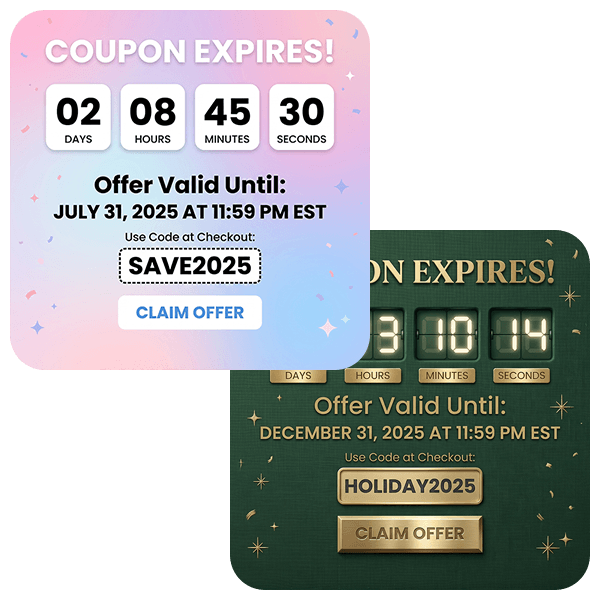
The timer renders at open and animates for 60 seconds, so the days left to redeem are right today and next week.
Everything Included in a Deadline Timer
A Plain Image in Any Client
The timer is a GIF in a standard img tag: Gmail, Apple Mail, Outlook, and mobile clients show it. In Outlook for Windows the first frame appears as a still.
Time Left at the Moment of Open
Each open fetches a fresh image with the current time left, which then ticks for 60 seconds. Reminders opened late still show the truth.
One Timer, Every Subscriber's Own Deadline
Append a merge tag from your email service provider (ESP) to the expire parameter, formatted as DD-MM-YYYY--HH-MM or ISO 8601, and each recipient counts down to their own Points Expire date.
Reminder, Urgent, and Expired Designs
Design a stage for each step of the reminder sequence and an after-deadline banner. DynaPictures switches them by the offset to each recipient's deadline.
Opens by Sequence Step
Tag each email's URL and see opens by step, email client, and country in the analytics dashboard.
Gauges and Progress Bars
A shrinking bar or a filling gauge can show how much of the window is left, driven by the same countdown.
Up to 30 Days Ahead, Longer on Pro
Every plan runs a timer up to 30 days ahead of its deadline. Longer windows, such as annual renewals announced early, need the Pro plan.
A View Allowance Rather Than a Hard Cap
The free tier covers 100 opens across your timers. On paid plans the monthly view allowance scales with your list; delivery is never throttled or watermarked.
How to Add a Points Expire Countdown to Your Emails
Set Up the Points Expire Timer in the Generator
Open the DynaPictures countdown timer generator, set a default deadline and timezone, design the reminder, urgent, and expired stages, and publish to get the image URL.
Add the Merge Tag for Each Recipient
Paste the URL into an image block in your email service provider (ESP) and append ?expire= followed by the merge tag that holds each subscriber's Points Expire date.
Track Opens per Step
Add a campaign parameter per email in the sequence and compare opens by step in the DynaPictures analytics dashboard.
Who Uses Points Expiry Countdown Emails
Loyalty program managers
Reducing breakage with timely reminders.
Ecommerce retention marketers
Turning expiring points into repeat orders.
Membership brands with points programs
Keeping balances visible and used.
See a Personalized Deadline in Action
Book a short walkthrough: build a Points Expire timer, add a merge tag, and watch two test contacts get two different countdowns.
How DynaPictures Compares for Deadline Emails
Personal Deadlines From Merge Tags
One published timer serves a different deadline per recipient. Elsewhere a timer usually has one fixed date.
Rendered When Opened
Many tools render one GIF at send time. DynaPictures renders at open and keeps the image for one minute.
Stages per Reminder Step
Different designs for the first reminder, the urgent one, and after expiry, switched automatically. Many tools show one design until the clock hits zero.
Your Brand in a Full Editor
Google Fonts, uploaded fonts, imagery, and an AI background generator. Many competitors offer a locked layout and a color picker.
Gauges and Progress Bars
Show the window closing as a bar or gauge, not only as digits. Digit-only timers are the norm elsewhere.
Analytics You Can Segment
Opens split by campaign parameter, email client, and country. Many tools report a total count at best.
Related Email Countdown Timers
Frequently Asked Questions
Create the timer in the countdown timer generator, publish it, and add its image URL to an image block in your email service provider (ESP) and append ?expire= with the expiry merge tag.