
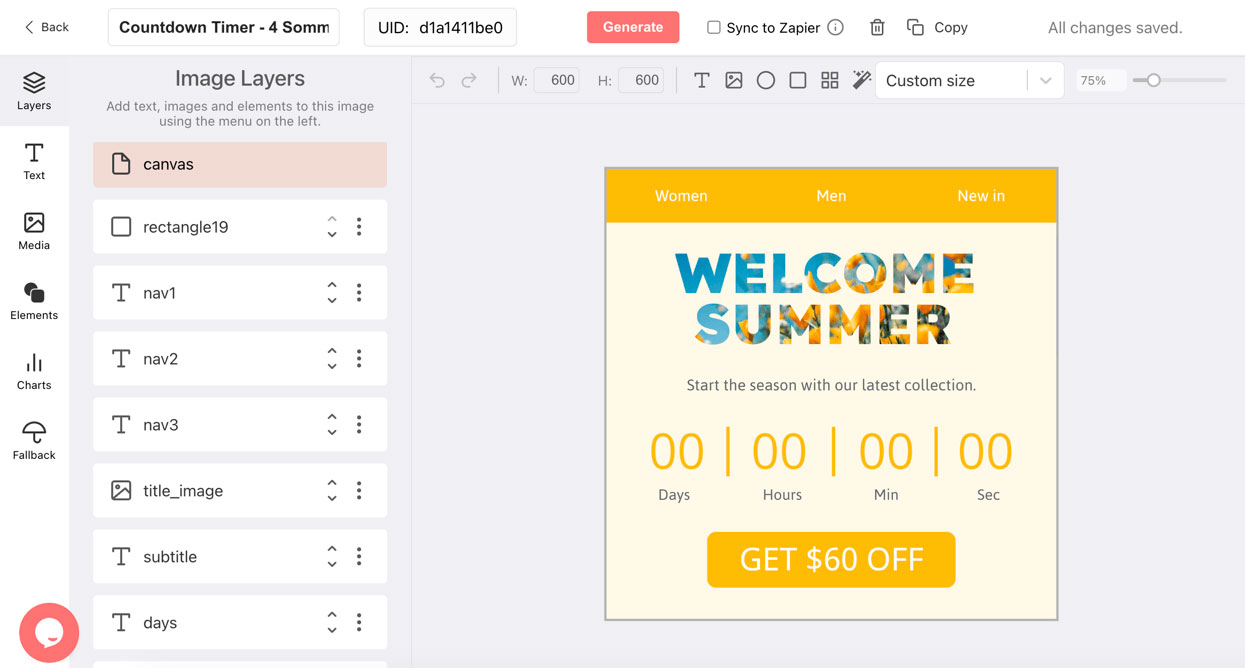
The Five Steps
1. Decide the Deadline and Timezone
Pick the moment the countdown ends and the timezone it should be measured in. For per-recipient deadlines, decide which field in your ESP holds the date.
2. Design the Timer and Its Stages
In the countdown timer generator, design the banner with your fonts and imagery. Add a last-hours stage and an after-deadline stage so the same image keeps working after the countdown ends.
3. Publish and Copy the Image URL
Publishing gives you a stable URL ending in .gif. The Share tab also shows the full img tag and merge-tag examples for Mailchimp, HubSpot, and Klaviyo.
4. Paste It Into Your Email
Add an image block in your ESP and use the URL as the source, or place the img tag in a coded template. Append ?expire= with a merge tag to personalize, and campaign= to track the send.
5. Test in Your Own Inboxes, Then Send
Send a test to Gmail, Apple Mail, and Outlook. Expect animation in the first two and a correct still frame in Outlook for Windows. Then send and watch opens in the analytics dashboard.
Platform-Specific Steps
The related pages below cover the image block and merge-tag syntax for each ESP, and the client pages explain Gmail's proxy, Apple's pre-fetching, and Outlook's still frame.
Details That Trip People Up
The Deadline Format
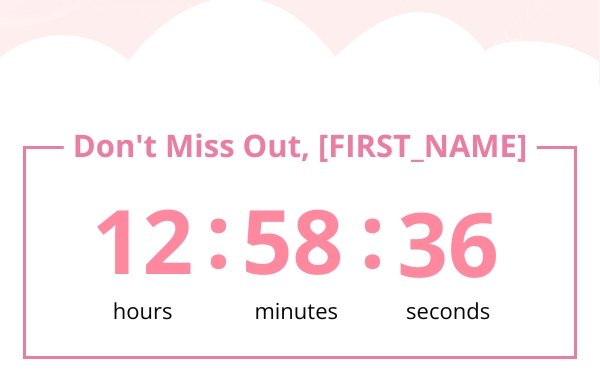
The expire parameter accepts DD-MM-YYYY--HH-MM, interpreted in the timer's timezone, or an ISO 8601 timestamp with an offset. A malformed value is ignored and the timer falls back to its published target, so the image never breaks.
What Happens After the Deadline
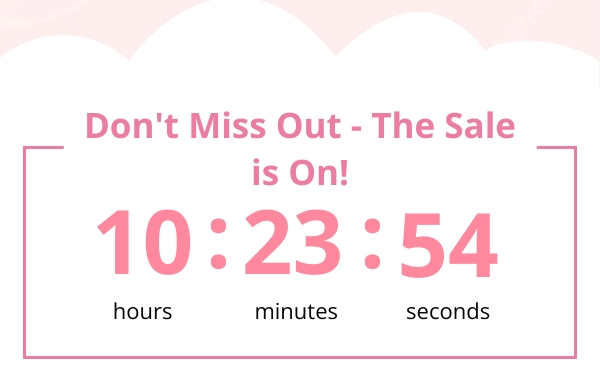
Without an after-deadline stage the digits stop at zero. Design one, for example a sale-closed or now-live banner, and DynaPictures serves it automatically. Stages count toward your plan's limit.
What Animates and What Does Not
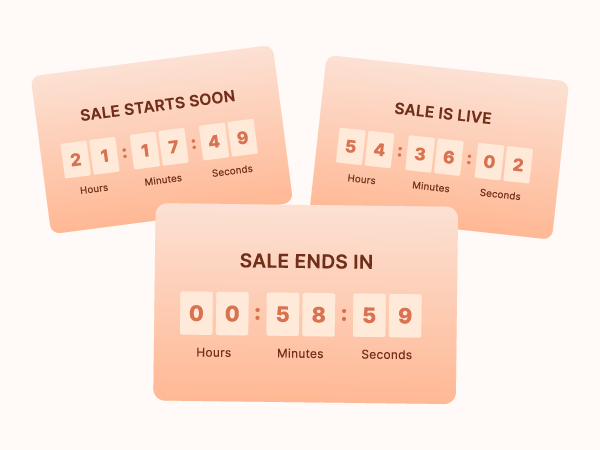
The GIF animates for 60 seconds after each open and then holds. Gmail, Apple Mail, and mobile apps play it; Outlook for Windows shows the first frame, which already holds the correct time. Images are cached per minute.
Everything in Every DynaPictures Timer
A GIF in a Standard img Tag
No JavaScript, no HTML5 animation, no client-side script. The image loads in Gmail, Apple Mail, Outlook, and mobile clients; Outlook for Windows shows the first frame.
Rendered per Open, Cached per Minute
Each open fetches an image with the exact time left at that moment. Images are cached for one minute per deadline and then regenerated, and each one animates for 60 seconds.
The expire Parameter
Append ?expire=DD-MM-YYYY--HH-MM (interpreted in the timer's timezone) or an ISO 8601 timestamp with an offset to the URL. Merge tags from your email service provider (ESP) fill it per recipient.
Stages by Offset
Each timer holds several designs, each with an offset from the target. Before, at, and after stages are selected on every render.
Every Open Logged
Email client, country, locale, and any custom query parameter are stored per open. Raw IP addresses are never kept, only a hash and the derived location.
Countdown-Driven Gauges
Radial tick gauges, simple gauges, and line progress bars take their value from the remaining time, next to or instead of digits.
REST API
Create, update, publish, preview, and read analytics for timers programmatically with an API key.
Plan Limits, Stated Plainly
Timers run up to 30 days ahead on Free, Lite, and Standard and without limit on Pro. Free serves 100 opens in total; paid plans have a monthly view allowance and no hard cap.
How to Set Up a DynaPictures Countdown Timer
Design It in the Generator
Open the DynaPictures countdown timer generator, set the target date and timezone, design one or more stages, and publish. You get a URL ending in .gif.
Embed the URL
Place the URL in an img tag or an image block in your email service provider (ESP). Append ?expire= with a merge tag for per-recipient deadlines.
Read the Analytics
Add any custom query parameter to segment opens, then watch them arrive in the analytics dashboard or pull them through the API.
Who This Guide Is For
Marketers adding their first timer
Who want the whole path in one place.
Designers handing off to an ESP
Who need the snippet and the sizing rules.
Developers wiring merge tags
Who need the deadline format and fallback behavior.
See the Timer Render Live
Book a short walkthrough of the generator, the expire parameter, stages, and the analytics dashboard.
Where DynaPictures Differs From Other Timer Tools
Rendered at Open
Many timer services generate one GIF at send time. DynaPictures generates per open, so the number on screen matches the clock.
Per-Recipient Deadlines
One URL, a different deadline per recipient through the expire parameter. Many tools support one date per timer.
Multi-Stage Designs
Before, at, and after designs switched automatically. Many tools show one design and a zeroed clock.
Gauges and Progress Bars
Remaining time as a gauge or bar, not only digits. Elsewhere, digits are usually the only option.
A Real Design Editor
Google Fonts, uploaded fonts, images, and an AI background generator. A fixed layout with a color picker is the common alternative.
Segmentable Analytics
Opens by custom parameter, client, country, and hour. A single total is what many tools offer.
Related Email Countdown Timers
Frequently Asked Questions
Yes. The free plan includes 100 opens across all timers, which covers testing and a small send. Paid plans add a monthly view allowance sized to your list.