
Why Add a Countdown to Your Advent Emails
A Deadline for Every Door
Each day's offer closes at midnight. A timer per door, or one timer with a daily expire value, shows exactly how long today's door stays open.
Days Until Christmas, Too
A second timer counts down to December 25, so the same email can show the season and the day at once.
A Reason to Open Every Morning
Subscribers learn that the door closes tonight. Seeing the hours tick down in the email itself makes the habit stick.
Consistent Artwork Across 24 Sends
Design the calendar look once with your fonts and imagery, and reuse it for every door with a new date.
What a DynaPictures Timer Adds to an Advent Series
One Design, Twenty-Four Deadlines
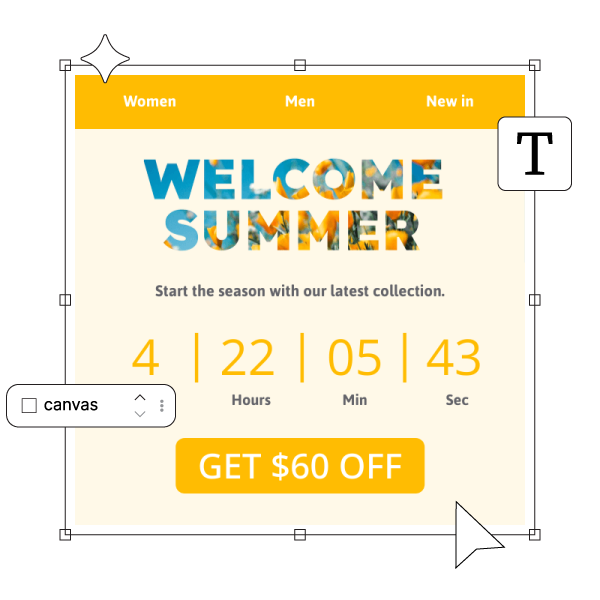
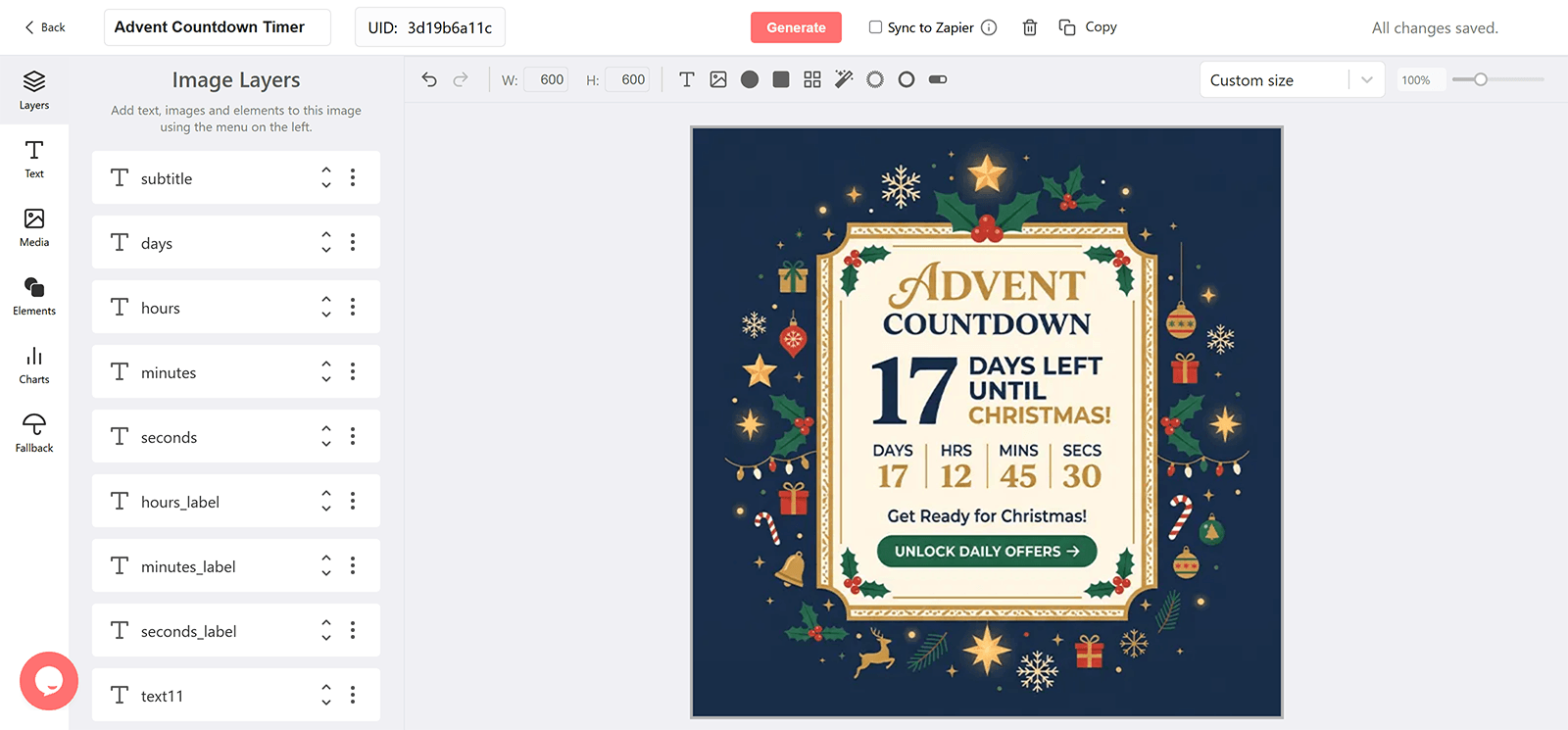
Design the door banner once in the countdown timer generator, then either duplicate the timer per day with its own target or keep one timer and append the day's deadline through the expire parameter in each email. Either way the artwork stays consistent and only the date changes.
Accurate Whenever the Door Is Opened
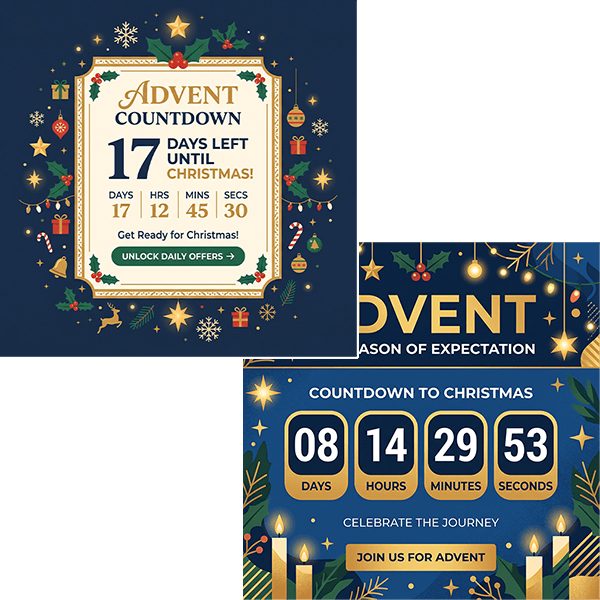
Advent emails get opened at breakfast and again after work. The timer renders when the email is opened, so the evening reader sees the hours left tonight rather than the number from the morning send.
Segment-Specific Doors
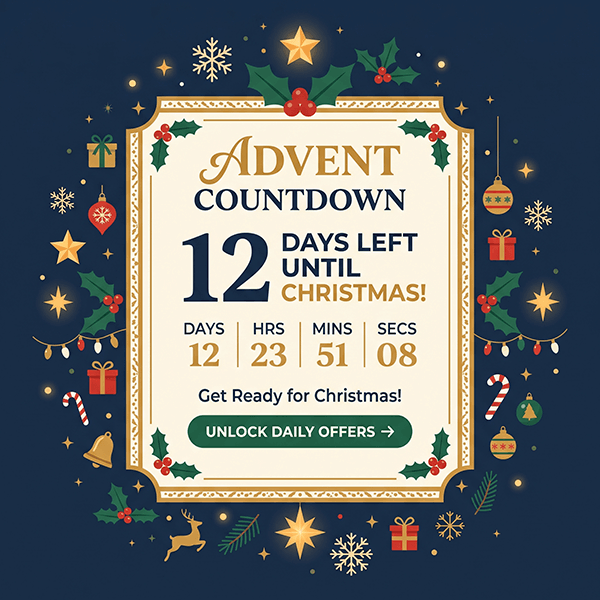
Give loyalty members an earlier door or an extra one by sending them a different expire value through your email service provider (ESP) merge tag. The design stays the same; only the deadline moves.
Everything Included in a Seasonal Timer
Loads Like Any Email Image
The timer is a GIF in a standard img tag, so it renders in Gmail, Apple Mail, Outlook, and mobile clients. Outlook for Windows shows the first frame as a still image with the correct time left.
Fresh on Every Open
Holiday emails get opened over several days. Each open fetches a new image with the time left at that moment, which then ticks for 60 seconds.
Teaser, Live, Last Hours, After
Design a stage for each phase of the Advent campaign and DynaPictures switches between them by the offset to your deadline. One URL serves the whole sequence.
Earlier Deadlines for VIP Segments
Give early-access subscribers their own cutoff by passing a different date through your email service provider (ESP) merge tag, or publish a second timer for that segment.
Opens per Send
Tag the timer URL per email and see opens broken out by send, email client, and country in the analytics dashboard.
Gauges and Progress Bars
Show the time left as a filling gauge or a shrinking bar as well as digits, all driven by the same countdown.
30-Day Runtime Covers the Season
Every plan runs a timer up to 30 days ahead of its deadline, enough for a teaser-to-close holiday campaign. Pro removes the cap for longer runs.
Sized for Holiday Send Volumes
The free plan serves 100 opens in total. Paid plans include a monthly view allowance sized to your list, with no throttling and no watermark on your biggest sends.
How to Create a Advent Countdown Email
Build the Advent Timer in the Generator
Open the DynaPictures countdown timer generator, set the deadline and timezone of your Advent campaign, and design the teaser, live, and after-sale stages. Publish to get the image URL.
Place It in Every Email of the Campaign
Paste the URL into an image block in the announcement, the reminders, and the last-chance email. The same URL shows the right stage in each of them.
Tag Each Send
Append a campaign parameter per email so opens show up by send in the DynaPictures analytics dashboard.
Who Uses Advent Countdown Emails
Ecommerce brands running daily December deals
Closing each door at midnight with a visible countdown.
Agencies producing seasonal campaigns
Reusing one calendar design across several client accounts.
Content and lifestyle brands
Publishing a daily reveal with a deadline that keeps subscribers opening.
See a Seasonal Countdown From Teaser to Sold Out
Book a short walkthrough: build a Advent timer, add the stages, and watch it switch as the deadline approaches.
Where DynaPictures Differs From Other Holiday Timer Tools
Correct for Late Openers
Many timer tools render one GIF at send time, so a subscriber who opens on the last day sees the number from send day. DynaPictures renders at open.
Stages Built Into the Timer
A teaser design before the sale, the live design during it, and an after-sale design when it ends, switched automatically. Many tools stop at a zeroed clock.
Segment Deadlines From One Design
Early access for VIPs and a public deadline for everyone else from the same artwork. Many tools need a separate timer per date.
Your Holiday Creative, Your Fonts
A full design editor with Google Fonts, uploaded brand fonts, imagery, and an AI background generator. Many tools offer a fixed layout and a color picker.
Gauges and Progress Bars
A filling gauge or a shrinking bar can show the time left alongside the digits. Many holiday timer widgets show numbers and nothing else.
Opens by Send and Client
See which reminder drove the opens and in which client. Many tools report one total or nothing.
Related Email Countdown Timers
Frequently Asked Questions
Design the door banner in the countdown timer generator and publish it. For each day's email, paste the image URL and append ?expire= with that day's closing time in DD-MM-YYYY--HH-MM, or publish one timer per door if you prefer separate analytics.