
Make your event signature banner
Join me at is filled in: add the event, date and place and a headshot, a logo or both, then download the PNG.
One signature design, a personal banner in every speaker's emails
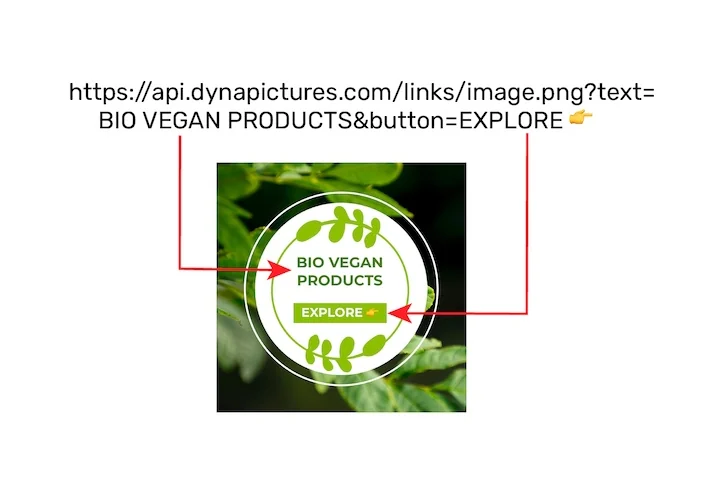
Speakers, exhibitors and the stand team write to exactly the people an event wants, so each signature should carry the invitation. DynaPictures publishes your signature template as an image URL with label, event and date as named parameters: every colleague pastes their version, and a design change reaches them all.
- Your fonts, colours and logo in the signature template
- Label, event and date as URL parameters
- A design change reaches every signature
How to add an event banner to your email signature
Fill in the event
Keep Join me at or change it to Meet us at, then type the conference name and the dates with the city or your booth number.
Pick a size and style
600x150 suits a short event name and a date; take 600x200 when the name runs long. Choose one of six styles in the event's colours.
Insert it and link it
Download the PNG, add it in your email app's signature settings and link the image to the registration page or your meeting booking link.
Why put the event in your signature
Every email becomes an invitation
A 600-pixel strip under your name reaches every client, partner and colleague you write to before the event, with no extra post to schedule.
Booth or session in one line
The date and place line holds up to 60 characters, enough for 3 to 5 March · Hall 4, Booth B12.
A version for each person on the stand
Everyone on the stand team can render their own strip with their own headshot, so a client who reads the email knows whose face to look for at the booth.
Face and company in one strip
The headshot sits in a circle on the left and the company logo on the right above the button, PNG, JPG or WebP up to 5 MB each.
Free, without a watermark
Each visitor gets 20 renders a day, and nothing of ours is stamped on the strip.
Promoting a conference in your email signature
Start the banner when registration opens or when your talk or booth is confirmed, and take it down the day after the event, since a past date tells recipients the signature is stale. Write the dates the way your recipients read them and add the city, or the hall and booth for a trade show. Link the image to the registration page or your meeting booking link, because the button is part of the picture and the whole strip carries the link. When the hall, the booth or the dates change, render the strip again and replace the image in your signature settings, since a downloaded PNG never updates on its own.
Free limits
20 renders and 60 live previews a day per visitor, the same for everyone and reset at midnight UTC.
Labels that work
Join me at, Meet us at, Speaking at or See you at, up to 30 characters, set in capitals in the accent colour above the event name.
Images
A headshot, a logo or both, up to 5 MB each: the headshot fills the circle on the left, the logo sits above the button. Uploads and downloads are kept for 24 hours.
Event signature banner questions
600 pixels wide by 150 or 200 pixels tall. That matches the width most email layouts use and keeps the strip from towering over your signature text.